
How To Enable Email Forwarding in Outlook
This guide provides step-by-step instructions on how to enable email forwarding on Outlook. By following these simple steps, users can easily set up email forwarding and ensure that all their emails are automatically forwarded to another email address. This feature can be particularly useful for individuals who need to consolidate their emails or access them from a different email account.
1. Navigate to https://outlook.office.com
2. Click “Your profile or add user”

3. Enter your password

4. Click “Settings clog top right”

5. Click “Forwarding”

6. Click the “Enable forwarding” field.

7. Click the “Enter an email address” field.

8. Click here.
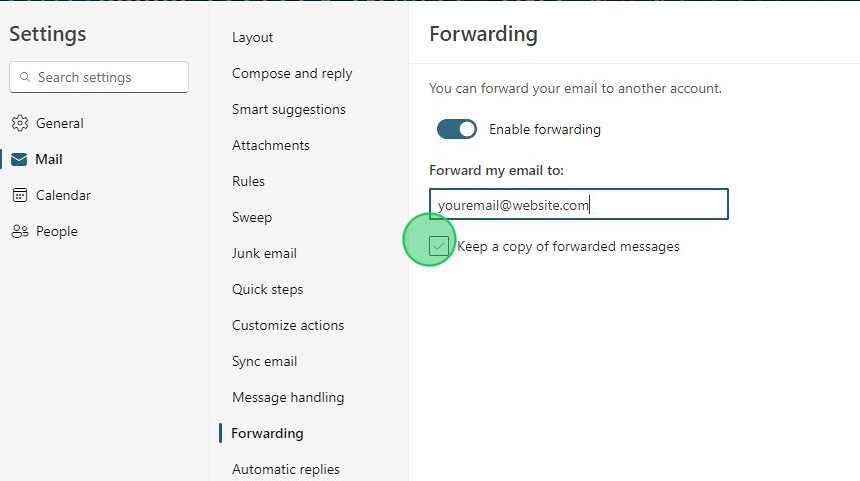
9. Click “Save”
